Private Comments for Jira: documentation
Private Comments for Jira by Loomwise makes new Jira Cloud comments private by default. Comments posted without a visibility setting are restricted to a project role or group you choose, site-wide or per project. It also adds a Private comment issue panel for notes that must be private from the moment they are posted.
Free · Jira Cloud · Runs on Atlassian Forge · Last updated 9 November 2026 (app version 3.14)
What it does
- Default visibility for new comments. When someone posts a comment without choosing who can see it, the app restricts it to your chosen project role or group.
- Global default plus per-project rules. Set one default for the whole site, then override it per project, or turn it off for a project.
- Company-managed and team-managed projects. Role names are matched between the two (for example Administrators and Administrator).
- Private comment panel. Post a comment that is restricted from the first second, with no window where it is visible to everyone.
- Leaves deliberate choices alone. Comments where the author already picked a visibility, and Jira Service Management internal notes, are never changed. Old comments are never changed.
Install
- A Jira site admin installs Private Comments for Jira from the Atlassian Marketplace (in Jira: Apps > Explore more apps, search for "Private Comments for Jira").
- Until the Marketplace listing is approved, you can install it with the direct Atlassian install link on the product page.
- Review the permissions on Atlassian's consent screen and approve.
- Complete the admin setup below so Jira allows the app to apply the restriction.
To uninstall: Settings (gear) > Apps > Manage apps > Private Comments for Jira > Uninstall. Existing restricted comments keep their visibility.
Admin setup
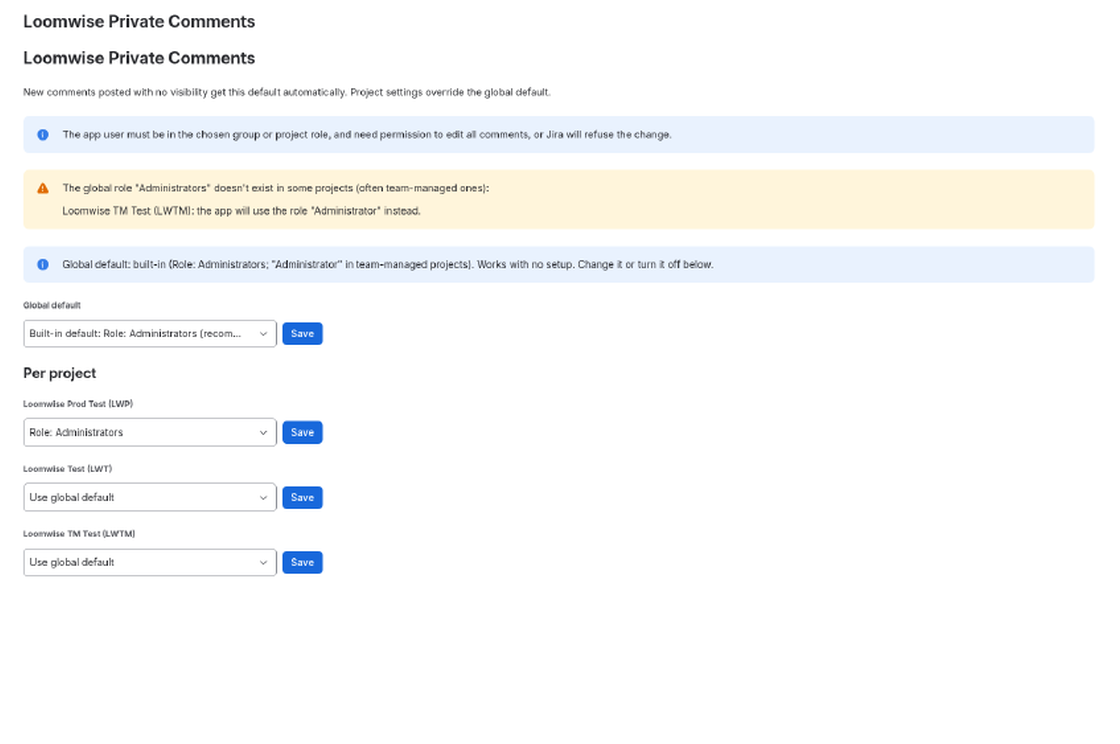
- Go to Settings (gear) > Apps and open Loomwise Private Comments in the sidebar. Only Jira administrators can open this page.
- Global default: keep the built-in default (Role: Administrators; Administrator in team-managed projects), pick another project role or a group, or choose Off. Click Save.
- Per project: each project can use the global default, choose its own role or group, or select No default for this project. Click Save next to the project.
- Give the app access to the role or group. Jira only lets a user, including an app, restrict a comment to a role or group it belongs to. The app does not add itself to roles or groups, so an admin must:
- For a project role: open Project settings > People (or Access in team-managed projects) and add the Private Comments app user to the chosen role.
- For a group: add the app user to that group in Atlassian Administration.
- Make sure the app user can edit comments in the project (the Edit All Comments project permission, which Jira's default app access usually grants).
If the global role doesn't exist in a project (common in team-managed projects), the admin page shows a warning and tells you which role the app will use instead, or that comments in that project will stay public until you set a project rule.
How comments get restricted
- A user posts a comment from Jira's normal comment box without choosing a visibility.
- Jira notifies the app that a comment was added. The app first checks, through Jira's permissions API, that this user can browse the issue, add comments, and edit their own comments (or all comments). If any check fails or errors, the app does nothing.
- The app reads the comment and confirms it was written by that same user. It skips comments that already have a visibility and JSM internal notes.
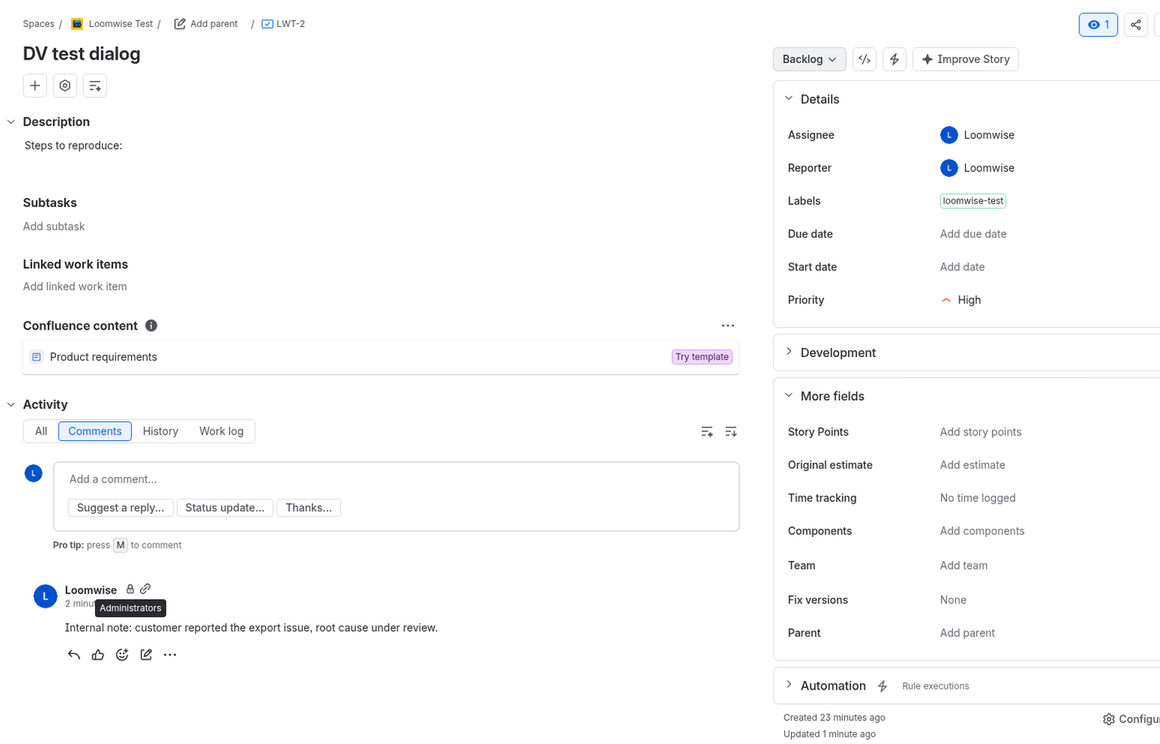
- The app sets the comment's visibility to the project rule or the global default, without changing the text and without sending extra notifications. Jira shows its lock icon on the comment.
Timing: this happens after the comment is saved, usually within a minute (it can take a few minutes at busy times). Until then the comment is visible as posted, and Jira may already have emailed @mentioned users and watchers. For anything sensitive, use the issue panel or Jira's own lock icon when you post.
Restricted comments are visible only to members of the chosen role or group, including the author, so pick a role or group your team belongs to.
The Private comment issue panel
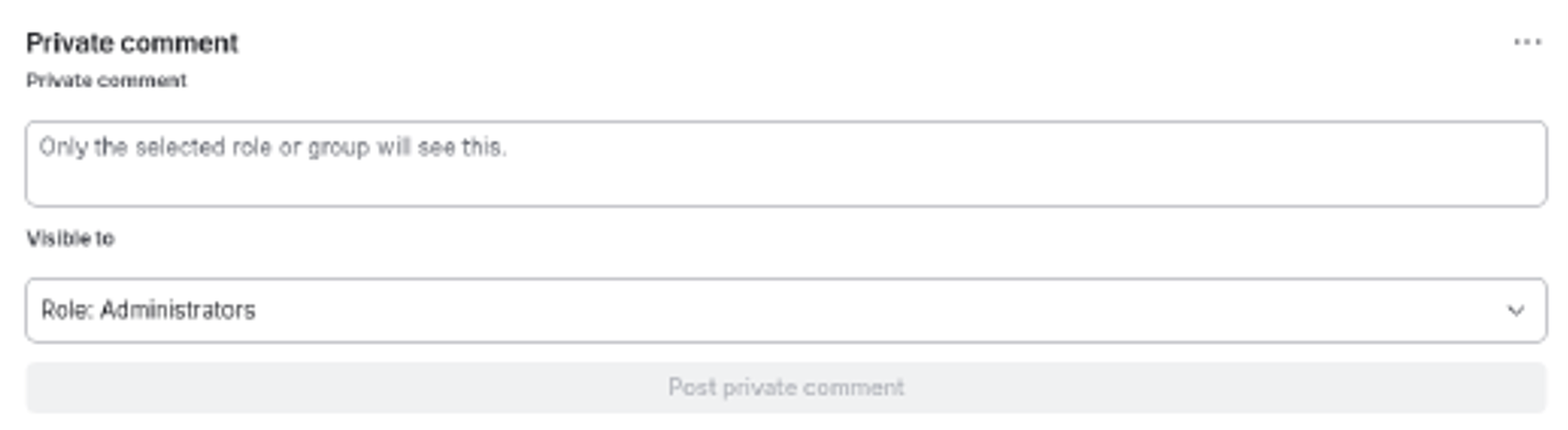
- On an issue, click the Private comment app icon under the issue title to open the panel.
- Type the comment and choose who can see it in Visible to (the default rule is preselected; the project's roles are also listed).
- Click Post private comment. The comment is created as you, with the visibility set at creation, so it is never visible to everyone.
The panel only opens for users who can browse the issue, and only posts for users who can add comments. As with Jira's lock icon, you can only restrict a comment to a role or group you belong to.
Permissions
What users need
- Automatic restriction applies to comments from users who have Browse Projects, Add Comments, and Edit Own Comments or Edit All Comments in that project. Comments from users without these permissions are left exactly as posted.
- Issue panel: Browse Projects to open it, plus Add Comments to post.
- Admin page: Jira administrator (Administer Jira).
Scopes the app requests
read:jira-work: read issues, comments, projects and project roles.write:jira-work: set a comment's visibility, and post comments from the panel as the signed-in user.read:jira-user: check user permissions and list groups on the admin page.manage:jira-configuration: check the acting user's project permissions and read role configuration.storage:app: store your default and per-project rules in Forge app storage.
Security and data
- User permissions are checked first. The admin page and the issue panel call Jira as the signed-in user, so Jira's own permissions apply. When the app acts on its own after a comment is posted, it calls Jira as itself only after confirming, through Jira's permissions API, that the acting user has the required permissions, and it only changes that user's own comment. Any error means no action.
- It only narrows access. The app never widens visibility, never edits comment text, and never changes project roles, groups or permissions.
- Data stays in Atlassian. It runs on Atlassian Forge and contacts no outside servers. The only data it stores is your visibility rules, in Forge app storage. Loomwise staff cannot read your Jira data.
- Security policy and vulnerability reporting: loomwise.app/security.
- Privacy: Jira app privacy policy · Terms: Jira app terms.
FAQ and troubleshooting
A new comment stayed public. Why? Check, in order: (1) the comment author has Edit Own Comments or Edit All Comments in the project; (2) the app user is a member of the chosen role or group; (3) the project isn't set to No default for this project and the global default isn't Off; (4) the chosen role exists in that project (see the warning on the admin page); (5) the author didn't pick a visibility themselves; (6) give it a minute, since restriction happens after posting.
The admin page says "You don't have permission". Only Jira administrators can open it.
The panel says I can't comment. You need Add Comments on that issue.
Jira refused the panel comment. You can only restrict a comment to a role or group you belong to. Pick another option in Visible to or ask an admin to add you to the role.
Does the app add itself to project roles? No. Earlier versions did; since version 3.14 an admin adds the app user to the chosen role or group.
Does it change old comments? No, only new comments posted after install.
Does it work with Jira Service Management? It skips JSM internal notes, which are already agent-only.
Is it free? Yes.
Background reading: How to make Jira Cloud comments private by default · Restrict a comment to a group or role · Team-managed projects
Support
Email hello@loomwise.app with your Jira site URL and, for a comment that wasn't restricted, the issue key.